


Here We Go Again
I have a mental folder labeled “Adobe Graveyard.” It’s packed with memories of Photoshop Touch, Photoshop Fix, Photoshop Mix, and that weird period where we had three different apps just to crop a photo and remove a blemish. If you’ve been in the creative industry for more than five minutes, you know the fatigue I’m talking about. Every few years, Adobe decides it has finally cracked the code on mobile editing, releases a “definitive” app, and then we all go back to using Lightroom or Snapseed a month later.
So, the new Photoshop Mobile app dropped on iOS this week. I downloaded it immediately. Obviously. I’m a glutton for punishment.
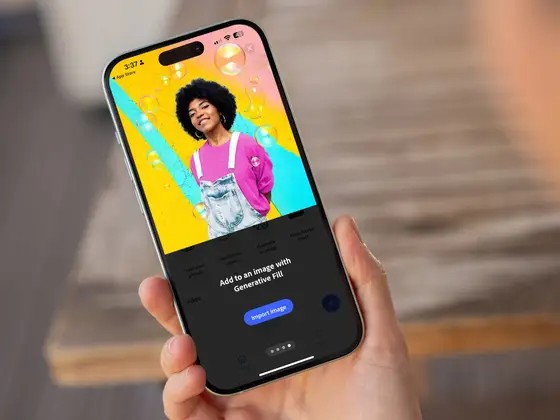
The hook this time isn’t just “layers on your phone” (which is still miserable to manage on a 6-inch screen, by the way). It’s the integration of the Firefly engine—specifically Generative Fill. And for the first time in a decade of mobile editing attempts, I think they might have actually found the one feature that justifies this app’s existence.
But let’s not get ahead of ourselves. It’s still Adobe, and there are still plenty of things that make me want to throw my phone across the room.
The “Fat Finger” Problem vs. Generative AI
Here is the fundamental problem with editing on a phone: fingers are clumsy. Mice and Wacom styluses are precise. Trying to manually mask hair or cut out a subject on an iPhone screen usually results in something that looks like a ransom note collage.
This is where the AI features actually save the day. I took a photo of my dog at the park yesterday—terrible lighting, trash can in the background, leash tangled around his legs. In the old days (meaning, like, 2024), fixing this on mobile would have been a twenty-minute nightmare of cloning stamps and frustration.
With the new app, I just roughly scribbled over the trash can with the lasso tool. I didn’t have to be precise. I typed “bushes” into the prompt bar, hit Generate, and waited about ten seconds.
The result? Scarily good.
It matched the lighting, the depth of field, and the grain. This is the killer use case. Not “creating art” on your phone, but fixing the garbage that ruins otherwise good photos without needing to open a laptop. The AI handles the blending and the edge refinement, which means my lack of precision with a touchscreen doesn’t matter anymore.
But It’s Not All Magic
There’s a catch. There is always a catch.
The processing is cloud-based. I tried to use Generative Fill while on the subway with spotty signal, and the app just spun its wheels before spitting out a connection error. If you’re planning to do heavy AI editing while off the grid, you’re out of luck.
Also, the resolution cap is still a thing. When you generate new elements, they look great on a phone screen, but zoom in to 100% on a desktop later, and you can see the softness. It’s getting better, sure, but don’t expect to print these edits on a billboard.
The Interface Identity Crisis
Adobe can’t seem to decide if this app is for pros or for Instagram influencers. The UI is a weird hybrid. You have your standard layer stack (thank god), but it’s tucked away. The tools are grouped in ways that make sense if you know Photoshop, but will likely baffle anyone coming from Canva.
I spent five minutes looking for the Curves adjustment. It was buried under a generic “Adjustments” icon that looked suspiciously like the Filters icon. Why? Just give me the icon I’ve known for twenty years.
However, I have to give credit where it’s due: the context-aware toolbar at the bottom of the screen is actually useful. It changes based on what you have selected. If you have a layer selected, it shows opacity and blending modes. If you have an active selection, it immediately offers Generative Fill or content-aware removal. It anticipates what you want to do, which saves a lot of menu diving.
Cloud Syncing: A Love/Hate Relationship
The pitch is always “Start on your phone, finish on your desktop.”
I tested this. I started a composite on my iPhone 16 Pro, added a few generative layers, did some masking, and then saved it. When I got back to my desk and opened Photoshop on my Mac, the file was there in the “Your Files” tab.
It opened. The layers were intact. The generative layers were still editable.
This sounds basic, but if you remember the dark days of Creative Cloud syncing circa 2020, you know this is a minor miracle. It didn’t flatten my groups. It didn’t rasterize my text. It just worked.
The lag, however, is real. Saving a multi-layer file with AI assets back to the cloud took a solid minute over Wi-Fi. It’s not instant. If you’re in a rush, that spinning blue circle is going to raise your blood pressure.
Android Users Left in the Cold (Again)
If you’re on Android, stop reading. You can’t use it yet.
I have a Pixel 9 Pro sitting on my desk that would be perfect for this—better screen, great camera—but Adobe has once again prioritized iOS. The official word is “later this year.”
It’s frustrating. The fragmentation of Android hardware is always the excuse, but at this point, the flagship Android phones are more than capable of handling this software. Leaving half the market waiting feels lazy, even if it is industry standard practice.
Is It Worth the Install?
If you already pay for the Creative Cloud photography plan, yes. Download it. It’s included, so you might as well have it for emergencies. Being able to remove a photobomber with Generative Fill while waiting for your coffee is genuinely useful.
But if you’re looking for a tool to do serious, pixel-perfect design work? No.
The screen is still too small. The touch controls are still too fiddly for anything requiring precision that the AI can’t guess. I tried to manually mask a complex hair selection because the AI missed a spot, and I nearly threw my phone out the window.
This isn’t “Photoshop on your phone.” It’s “Photoshop’s AI features on your phone, plus some other stuff you’ll probably ignore.” And honestly? That’s probably enough.
Frequently asked questions
Does the new Photoshop mobile app work offline?
No. Generative Fill processing in the new Photoshop Mobile app is cloud-based, so it requires an internet connection. When tested on a subway with spotty signal, the app spun its wheels before returning a connection error. If you plan to do heavy AI editing while off the grid or traveling without reliable Wi-Fi or cellular data, you will not be able to use the generative features at all.
Is Photoshop Mobile available on Android?
Not yet. The new Photoshop Mobile app launched on iOS first, and Android users are being told to wait until “later this year.” Adobe typically cites Android hardware fragmentation as the reason, but flagship devices like the Pixel 9 Pro are more than capable of running the software. For now, half the mobile market is locked out of the app entirely, continuing Adobe’s pattern of iOS-first releases.
How good is Generative Fill on the Photoshop mobile app?
Surprisingly good for quick fixes. You can roughly scribble over an unwanted object like a trash can with the lasso tool, type a prompt such as “bushes,” and get results in about ten seconds that match the photo’s lighting, depth of field, and grain. However, generated elements look soft when zoomed to 100% on a desktop, so they’re not suitable for high-resolution print work like billboards.
Does Photoshop Mobile sync properly with desktop Photoshop?
Yes, cloud syncing between the iPhone app and desktop Photoshop actually works reliably now. Files saved on mobile appear in the “Your Files” tab on Mac with layers intact, groups preserved, text unrasterized, and generative layers still editable. The tradeoff is speed: saving a multi-layer file with AI assets back to the cloud took roughly a minute over Wi-Fi, so it’s functional but not instant.